Working Directory vs. Local Repository vs. Staging Area
When you use Git, your project folder is actually split into distinct layers:
-
The Working Directory (Working Tree):
- This is the actual folder on your computer’s hard drive where you can see, open, and edit your source code files (like
.javaor Markdown files) in your editor or IDE. It represents the current state of the files you are actively modifying.
- This is the actual folder on your computer’s hard drive where you can see, open, and edit your source code files (like
-
The Local Repository (The
.gitfolder):- This is hidden inside your project folder (
.git/). It is a database where Git stores the entire history, every commit, every branch, and compressed snapshots of your project.
- This is hidden inside your project folder (
-
The Staging Area (Index):
- (Just to complete the picture) This is a holding space between your working directory and your local repository where you queue up changes using
git addbefore making a commit.
- (Just to complete the picture) This is a holding space between your working directory and your local repository where you queue up changes using
The Low-Level Architecture of a Repository
A Git repository consists of three distinct states mapped to disk:
-
The Working Directory:
- The tree of uncompressed files sitting directly on your filesystem. These are raw bytes that your compiler or IDE reads and writes.
-
The Index (
.git/index):- The binary flat-file database you referenced. It acts as a cache and a manifest. It holds a sorted array of file paths, their modification timestamps, file sizes, permissions (e.g.,
100644), and crucially, the 40-character SHA-1 object hashes pointing to the exact blobs stored in the object database. It represents the intended state of the next commit.
- The binary flat-file database you referenced. It acts as a cache and a manifest. It holds a sorted array of file paths, their modification timestamps, file sizes, permissions (e.g.,
-
The Object Database (
.git/objects/):- A content-addressable storage system containing zlib-compressed binary objects (
blob,tree,commit, andtag). Files are stored not by name, but by the SHA-1 hash of their content.
- A content-addressable storage system containing zlib-compressed binary objects (
git clone
git clone <url>
This is a one-time setup command. It connects to a remote server (like GitHub), downloads the entire remote repository (including its history, branches, and tags) into a new folder on your computer, and automatically sets up your working directory with the default branch (usually main or master). You only run clone once when you want to bring a project onto your machine for the first time.
When you run git clone <url>, it does not just download remote files into a generic folder, under the hood it performs a sequence of low-level system operations:
-
Repository Initialization:
- It creates a new directory and executes an internal
git init, generating a fresh.gitstructure (HEAD,config,objects/,refs/).
- It creates a new directory and executes an internal
-
Object Fetching:
- It connects to the remote server via transport protocols (SSH or HTTP), negotiates missing objects, and downloads a packfile containing the remote repository’s entire history of commit, tree, and blob objects. These are written directly into
.git/objects/pack/.
- It connects to the remote server via transport protocols (SSH or HTTP), negotiates missing objects, and downloads a packfile containing the remote repository’s entire history of commit, tree, and blob objects. These are written directly into
-
Reference Population:
- It populates
.git/refs/remotes/origin/and creates local tracking branches inside.git/refs/heads/pointing to the commit hashes fetched from the remote.
- It populates
-
Index Generation (
.git/index):- It reads the commit object (default branch reference) pointed to by
HEAD, extracts its root tree object, and populates the.git/indexbinary file with entries containing the file paths, metadata, and blob hashes for that specific commit.
- It reads the commit object (default branch reference) pointed to by
-
Working Directory Population (Checkout phase):
- Git reads the newly populated
.git/index, iterates through every entry, extracts the raw content from the corresponding compressed blobs in.git/objects/, and writes those files out as uncompressed bytes into your working directory.
- Git reads the newly populated
git checkout
This is an ongoing workflow command. Once you already have a local repo, checkout tells Git: “Take the files from branch X stored inside my local repository, and update my working directory to show those files.” It moves you between different versions or branches of your project.
git checkout <branch> or git switch)
When you execute git checkout <branch> (or modern equivalent git switch), Git updates the repository state using the index and object database:
-
Reference Update:
- It updates the
HEADfile (either pointing it to a new branch reference in.git/refs/heads/or directly to a commit hash in a detached HEAD state).
- It updates the
-
Tree Resolution:
- It looks up the commit object associated with the target branch, which points to a root
treeobject representing the directory structure at that commit.
- It looks up the commit object associated with the target branch, which points to a root
-
Index Mutation:
- It updates
.git/index, replacing its entries with the file paths, modes, and SHA-1 blob hashes belonging to the target commit’s tree.
- It updates
-
Working Directory Synchronization:
- Git compares the updated
.git/indexagainst the current Working Directory. For any file whose SHA-1 hash in the index differs from what is currently on disk, Git overwrites the file in the Working Directory with the uncompressed content retrieved from the corresponding blob in.git/objects/.
- Git compares the updated
git checkout without a branch name?
If you run git checkout by itself (or more modernly, git status), doesn’t switch branches. It checks the status of HEAD and prints the current branch, but performs no mutations.
git checkout .
- However, if you run
git checkout .(with a dot) or the moderngit restore ., Git forces the Working Directory to match the.git/indexby discarding all uncommitted local modifications and rewriting the working files using the blobs referenced in the index. - It discards uncommitted changes across all files in the current working directory and its subdirectories (matching the current path scope).
git checkout -- <filename>
git checkout <filename>is used to discard local changes in your working directory, overwriting your current uncommitted edits with the version from the last commit.- If you want to target and discard uncommitted changes for a single file only, you must specify the path explicitly:
git checkout -- <filename>
# or using the modern syntax:
git restore <filename>
switch and restore
In modern Git,
git switchis preferred for changing branches andgit restoreis preferred for discarding changes, butcheckouthistorically handled both
Modern Git: git switch and git restore
Historically, git checkout was overloaded with multiple entirely different responsibilities:
- Switching between branches (
git checkout feature-branch) - Overwriting working directory files using content from the index or history (
git checkout -- file.java)
To eliminate this ambiguity and reduce user error, Git version 2.23 (released in August 2019) split git checkout into two dedicated commands:
git switch: Strictly handles branches (moving between them, creating new ones with-c, or detaching HEAD). It interacts with.git/HEADand.git/refs/heads/.git restore: Strictly handles files and data paths (restoring files in your working directory from the index or a specific commit). It interacts with.git/indexand.git/objects/.
Destructive Command Warning
Executing commands like
git checkout .orgit restore .will permanently wipe out any uncommitted modifications in your working directory. Ensure you do not need those unsaved edits before running them.
Git with IntelliJ
When you click Get from VCS (Version Control System) in IntelliJ and paste a GitHub URL, the IDE invokes the underlying Git binary (or its native JGit library) to execute the exact git clone sequence detailed above.
When you write code in IntelliJ, you are working directly in your Working Directory.
Here is the loop of what happens:
-
Writing code: Modifies files on disk in the Working Directory.
-
Staging / Committing: IntelliJ calculates SHA-1 hashes of your modified working files, writes new
blobandtreeobjects into.git/objects/, and updates the binary cache inside.git/indexand updates the branch pointer inside.git/refs/heads/. -
You click IntelliJ’s Git commit button: IntelliJ takes those files, stages them, and saves a permanent snapshot of them into your Local Repository (the hidden
.gitfolder on your local disk). -
You click Push: IntelliJ takes the snapshots from your Local Repository and uploads them up to GitHub (the remote repository).
So, while your history and version control tracking live in the local repo, your actual day-to-day coding happens inside the working directory that IntelliJ has open.
Mapping Git’s Low-Level Files to the .git Directory
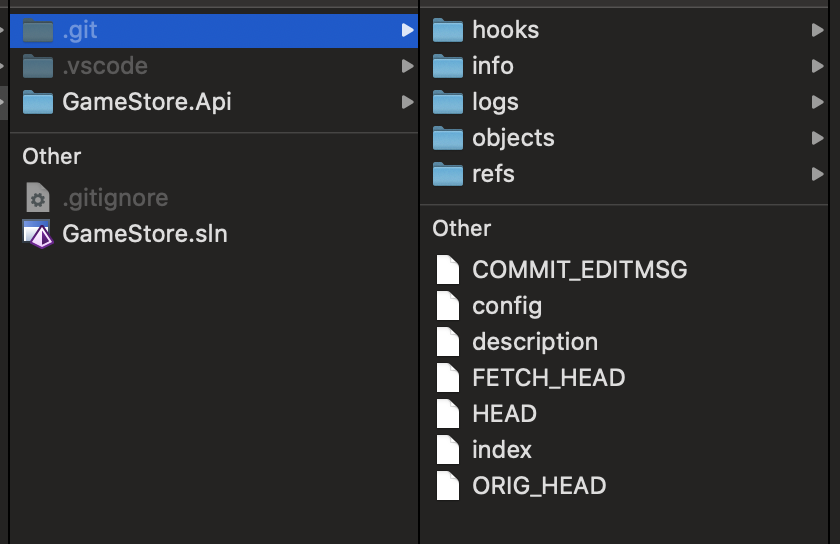
Physical Layout of
.gitinGameStore/
The image of .git folder (GameStore/.git) reveals the exact physical layout of the database structures discussed:
HEAD: A text file containing a pointer to your current active branch reference (e.g.,ref: refs/heads/main) or a raw commit SHA-1 hash if you are in a detached HEAD state.
index: The binary flat-file database containing the structured schema (timestamps, file sizes, permissions like100644, and 40-character SHA-1 blob hashes) representing the staging area manifest.
objects/: The content-addressable storage directory where all zlib-compressed binary objects (blobsfor file contents,treesfor directory structures, andcommitsfor history graphs) are stored based on the hash of their content.
refs/: Contains subdirectories (heads/,remotes/) holding simple text files whose names are branch names and whose contents are the exact 40-character commit SHA-1 hashes where those branches terminate.
Low-Level Mechanics of git fetch, git merge, and git pull
To see how remote synchronization works under the hood, let’s trace these commands using our repository structure (GameStore):
git fetch
- What it does low-level: It communicates with the remote server (GitHub), downloads any new
commit,tree, andblobobjects that your local repository is missing, and writes them straight into.git/objects/.
Crucial Detail
It does not touch your Working Directory, your
.git/index, or your local branch (refs/heads/main). Instead, safely updates your remote-tracking references inside.git/refs/remotes/origin/main.
git merge
- What it does low-level: It takes a target commit (for example, the newly updated
origin/mainref) and combines its history with your current branch’s head (refs/heads/main).
Actions
It updates
.git/indexto match the merged tree state, creates a new merge commit object in.git/objects/, updatesrefs/heads/mainto point to it, and updates the Working Directory files on disk.
git pull
- What it does low-level:
git pullis simply a macro command. It executesgit fetchfollowed immediately bygit merge(orgit rebaseif configured).
Working Example: Syncing Changes in GameStore
Suppose a colleague pushes a new commit changing GameStore.Api/Program.cs on GitHub, and you want to pull it into your local workspace. Here is the exact command sequence and what happens inside .git:
- Run Fetch:
git fetch origin
- Under the hood: Git contacts GitHub, finds a new commit object (
abc1234), downloads its missing blobs into.git/objects/, and updates.git/refs/remotes/origin/mainto point toabc1234. - State: Your working directory and local branch (
refs/heads/main) are still completely untouched.
- Inspect the fetched state (Optional):
git log origin/main --oneline- Shows you the remote changes without risking your local uncommitted work.
- Run Merge:
git merge origin/main- Under the hood: Git finds the common ancestor between your local
refs/heads/mainandorigin/main, computes a fast-forward or three-way merge, updates.git/indexwith the new file metadata, and rewritesGameStore.Api/Program.csin your Working Directory on disk to match the remote version.
Alternatively, running git pull origin main executes both steps in a single atomic action.